Kirigami Addons Settings QML Types
The Settings module presents an application's configuration pages in a desktop window or in the application's page stack on mobile. Import it with an alias:
import org.kde.kirigamiaddons.settings as SettingsOrganizing settings pages
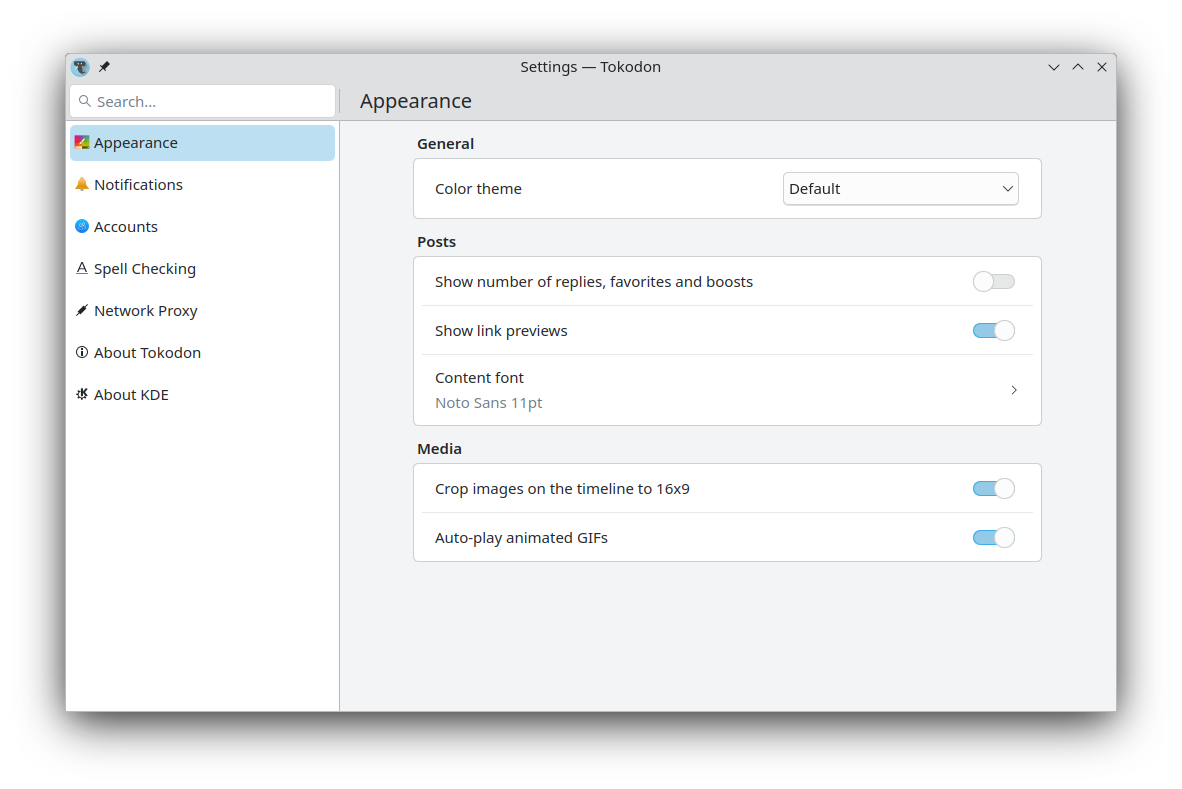
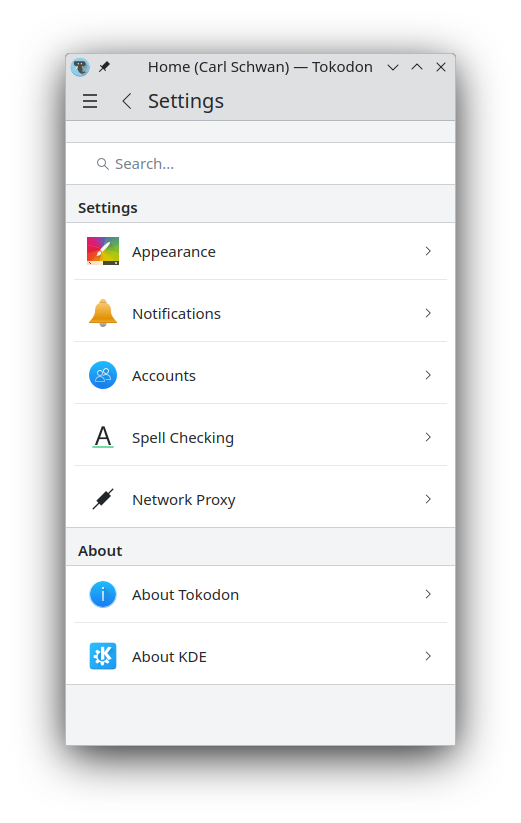
A ConfigurationView owns a list of ConfigurationModule objects. Each module describes one settings page: its identifier, label, icon, and the component used to create the page. The view shows a list beside the selected page on desktop. On mobile, it shows the list first and opens a selected page in the application window's page stack.
A desktop settings window with the selected page beside the module list:
A mobile settings page with modules grouped under headings:
Set window to the application's Kirigami.ApplicationWindow before calling open(). A module's page property is a function that returns a Component. A FormCardPage is a convenient root for a settings page:
import QtQuick
import QtQuick.Controls as Controls
import org.kde.kirigami as Kirigami
import org.kde.kirigamiaddons.formcard as FormCard
import org.kde.kirigamiaddons.settings as Settings

Kirigami.ApplicationWindow {
    id: window

    Component {
        id: generalPage

        FormCard.FormCardPage {
            title: i18nc("@title", "General")

            FormCard.FormHeader {
                title: i18nc("@title:group", "Appearance")
            }

            FormCard.FormCard {
                FormCard.FormSwitchDelegate {
                    text: i18nc("@option:check", "Use dark colors")
                }
            }
        }
    }

    Settings.ConfigurationView {
        id: settingsView
        window: window

        modules: [
            Settings.ConfigurationModule {
                moduleId: "general"
                text: i18nc("@action:button", "General")
                icon.name: "preferences-system-symbolic"
                page: () => generalPage
            }
        ]
    }

    Controls.Button {
        text: i18nc("@action:button", "Settings")
        onClicked: settingsView.open()
    }
}
Add more ConfigurationModule objects to modules for more pages. Give each module a distinct moduleId. Pass that ID to settingsView.open("general") to select a page when opening the settings view. Without an ID, desktop opens the first module and mobile shows the module list.
Controlling modules
Set a module's visible property to hide it from the settings list. Set category to a translated heading to group modules on mobile; modules with the default category appear in the main Settings group.
The view creates each page on its first visit and caches it for later visits. Use initialProperties to pass values needed at creation time. For example, if the page component declares a required property string accountName, initialize it like this:
Settings.ConfigurationModule {
    moduleId: "account"
    text: i18nc("@action:button", "Account")
    page: () => accountPage
    initialProperties: () => ({ accountName: window.activeAccountName })
}
Changes to these values after the page has been created need regular QML bindings or signals; initialProperties is called only when creating the page.
Ready-made modules
SpellcheckingConfigurationModule supplies a spellchecking settings page when the desktop style supports it. ShortcutsConfigurationModule supplies a keyboard shortcut editor on desktop and requires an AbstractKirigamiApplication from the Actions module through its application property. Add either type to modules alongside your own ConfigurationModule objects.
CategorizedSettings and SettingAction are deprecated. Use ConfigurationView and ConfigurationModule for new settings pages.
See also ConfigurationView, ConfigurationModule, SpellcheckingConfigurationModule, and ShortcutsConfigurationModule.
This object holds the information of configuration module | |
This is an abstract view to display the configuration of an application | |
Configuration module for keyboard shortcuts | |
Configuration module for spellchecking |